What is the Bitmap Converter?

Easily convert images to black and white bitmaps for your Arduino display projects!

Bitmap Converter Features
  1. Simple image upload
  2. Supports common display resolutions or custom sizes
  3. Adjustable brightness with 4 dithering algorithms
  4. Real-time preview of original and converted images
  5. Generate Arduino code (PROGMEM byte array)
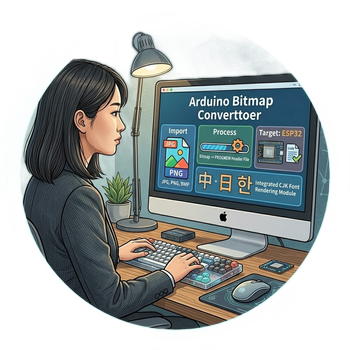
Bitmap Converter Example

Image to Bitmap Converter

Display Resolution
Select Image File

How2use

  1. Display Resolution: Select display resolution:
  2. Select Image File: Please select an image file:
  3. Brightness Adjustment:: Brightness Adjustment:
  4. Generate Code: Generate Arduino Code
  5. Generated Arduino Code: Generated Arduino Code


Sample Arduino Code (U8g2 Library)

This example shows how to use the generated bitmap with the popular U8g2 library.

#include <Arduino.h>
#include <U8g2lib.h>

#ifdef U8X8_HAVE_HW_SPI
#include <SPI.h>
#endif
#ifdef U8X8_HAVE_HW_I2C
#include <Wire.h>
#endif


// Include the generated bitmap header file
// Make sure this file is in the same directory as your .ino file,
// or provide the correct path.
#include "bitmap.h" // <-- RENAME THIS to match the generated code's filename suggestion

// Example for SSD1306 I2C display (replace with your display constructor)
U8G2_SSD1306_128X64_NONAME_F_HW_I2C u8g2(U8G2_R0, /* reset=*/ U8X8_PIN_NONE);

// OLED TEXT ROW number, vertical position
const byte ROW[5] = {0, 15, 31, 47, 63};

void setup(void) {
  Serial.begin(115200);
  u8g2.begin();
  Serial.println("u8g2 started");  
}

void loop(void) {
  u8g2.clearBuffer(); // clear the internal memory

  // Draw the bitmap at position (0, 0)
  // u8g2.drawXBMP(x_pos, y_pos, bitmap_width, bitmap_height, bitmap_data);
  // Use the width and height mentioned in the generated code comments.
  // NOTE: U8g2's drawXBMP expects MSB first data format.
  // If you checked "Swap bits (U8g2 LSB)", the generated data is LSB first.
  // U8g2 doesn't have a built-in function for LSB-first XBMP directly.
  // You might need a custom drawing function or ensure your U8g2 mode matches the data.
  // For standard usage with drawXBMP, leave "Swap bits" UNCHECKED.
  // The "Invert Colors" option affects the data itself, drawXBMP will draw it as is.
  u8g2.drawXBMP(0, 0, 128, 64, your_image_bitmap); // <-- Use the array name from generated code
  Serial.println("Code working!");
  u8g2.sendBuffer(); // transfer internal memory to the display
  delay(5000);
}
            

Note: U8g2's drawXBMP function requires data in LSB-first (Least Significant Bit first) format, which matches the standard XBM specification. If your image conversion tool defaults to MSB-first output, you will need to enable an option (like "Swap bits", "LSB first", or "XBM format") to generate the correct LSB-first data needed by drawXBMP. When the data is correctly formatted as LSB-first, you can use it directly with the standard drawXBMP function without needing custom code.. The "Invert Colors" option modifies the bitmap data itself; `drawXBMP` will render the inverted image if the option was checked during generation.